Most AI-generated slides look alike because they solve layout the same safe way: every point gets equal weight, each one sits in a rounded card with a small icon, the headline is barely bigger than the body text, and gaps are filled with generic imagery. The result is tidy but has no focal point — the audience doesn't know where to look first. To avoid the generic AI look, give each slide one dominant element, make the headline several times larger than the body, use real photography instead of icon decoration, drop the default boxes, and let each slide's layout follow its own content. Below are the six patterns we fix most often, with real slides before and after.
- 01
Everything has the same weight
The most reliable sign of an AI slide is that nothing wins: four points, four equal boxes. Decide what the audience must see first — usually one number, one photo or one sentence — and give it most of the slide, roughly 80% of the visual weight. Everything else becomes smaller and quieter. On the slide below, the three headline figures were buried inside long bullet sentences; after the redesign they're the first thing you read.
How BetterPPT redesigns an existing deck →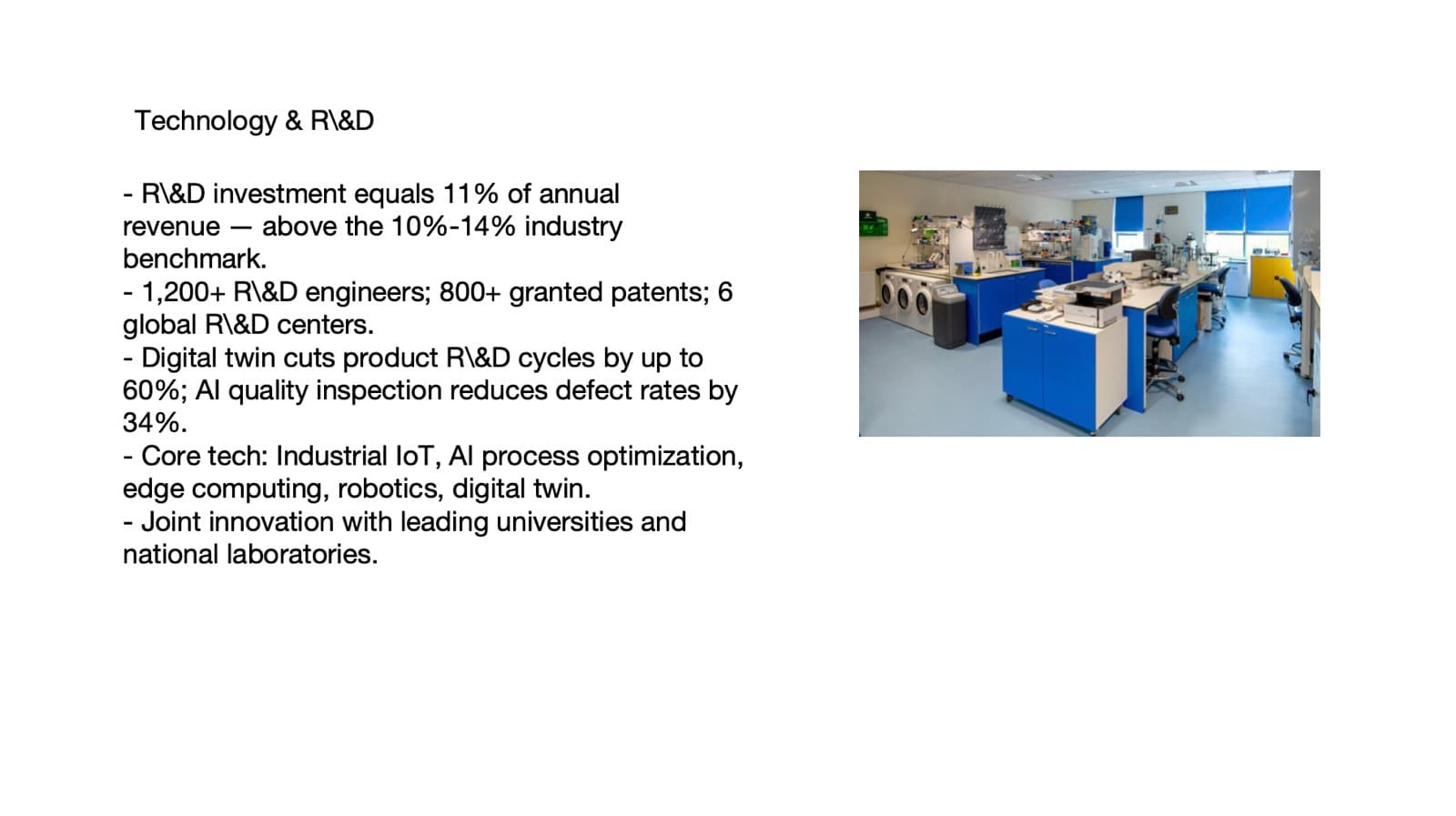
Before: five equal bullets, key figures buried 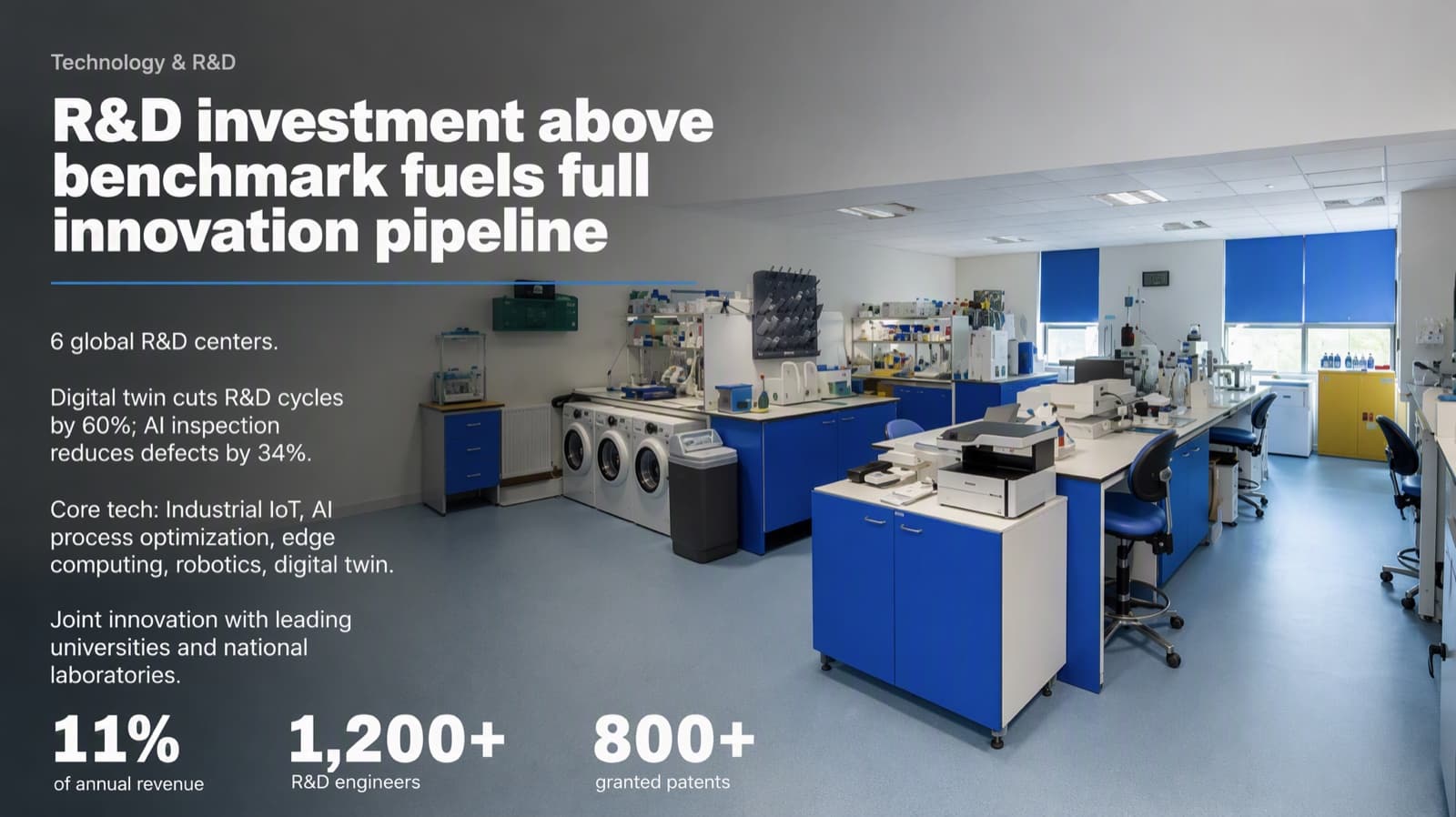
After: 11%, 1,200+ and 800+ become the focal point - 02
Rounded cards and small icons everywhere
Wrapping every point in a rounded card with an icon on top is the default move of template-based generators, and it's what makes slides read as “made by AI”. Most of those boxes do no work. Remove them and separate groups with space, alignment and an occasional thin rule instead. If a slide needs blocks, use square-cornered areas that line up on a shared left edge. Icons should carry meaning, not fill a circle.
- 03
The headline is barely bigger than the body
Generic slides keep every text size within a narrow band, so nothing stands out. Professional slides use extreme scale contrast: the headline or key number is often five to ten times the body size, and a slide rarely needs more than three or four sizes in total. On the title slide below, the same four lines of text become a clear hierarchy once the company name is allowed to dominate.
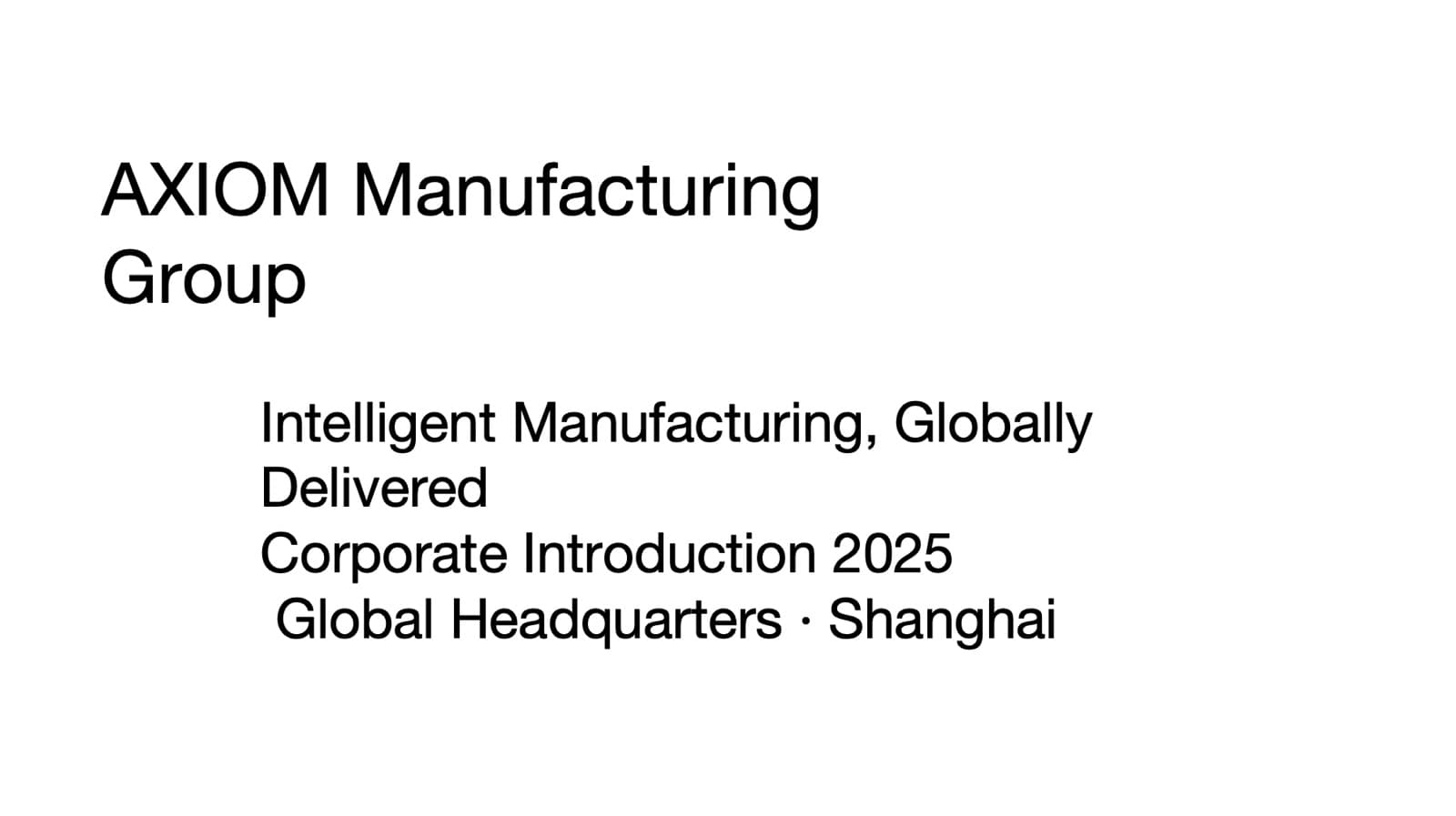
Before: four lines, almost the same size 
After: the name dominates; details step down - 04
Icons and stock decoration instead of real imagery
AI layouts often decorate with icons, abstract shapes or a small stock photo in a corner. A real photograph used large — full-bleed or occupying its own clear area — does far more. If you have real photos of your product, team or facilities, make one of them the base of the slide and keep the color treatment consistent across the deck. On the company profile below, the warehouse photo moves from a thumbnail to the slide's foundation, and the figures sit on top of it.
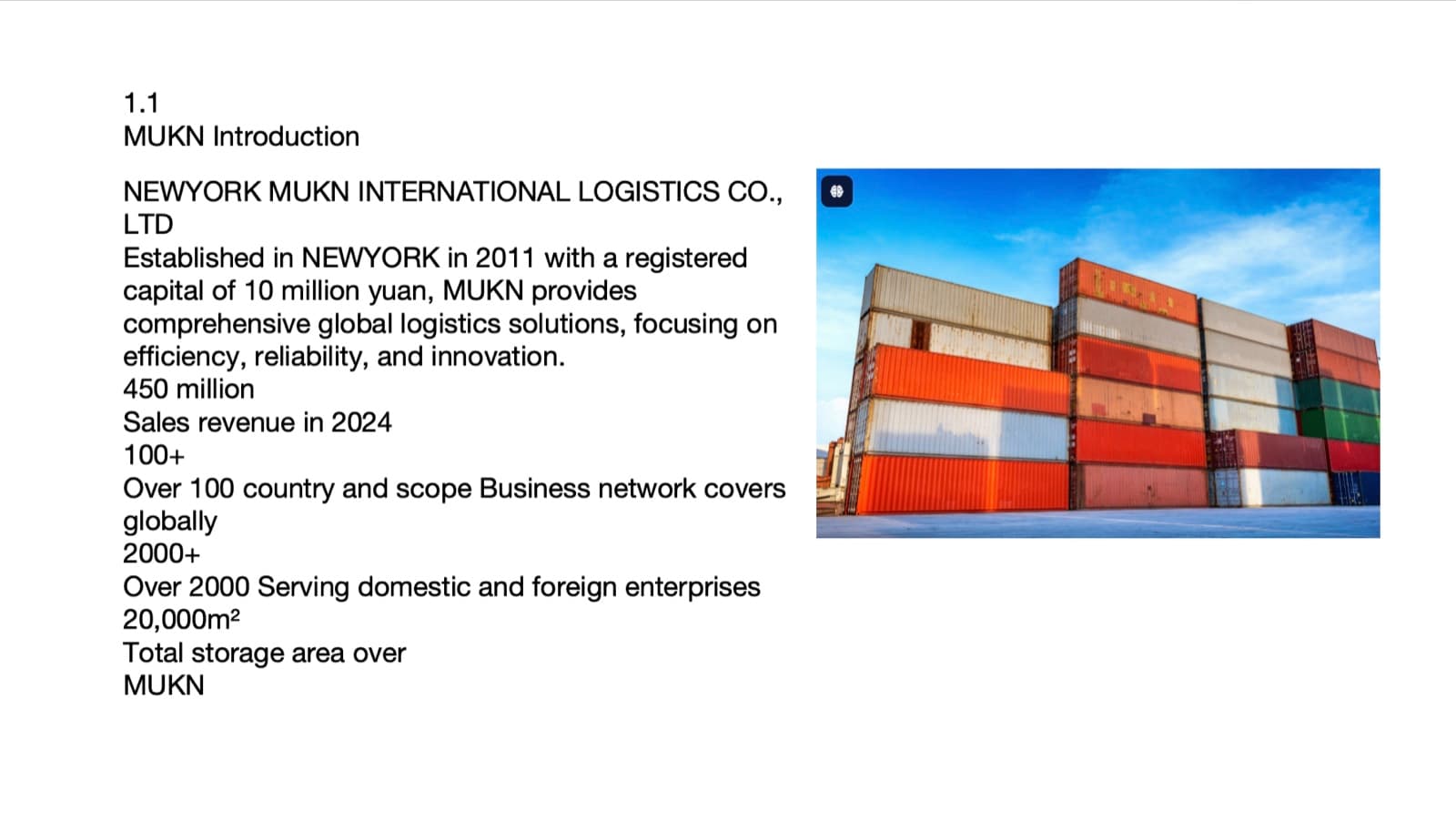
Before: text block plus a small photo 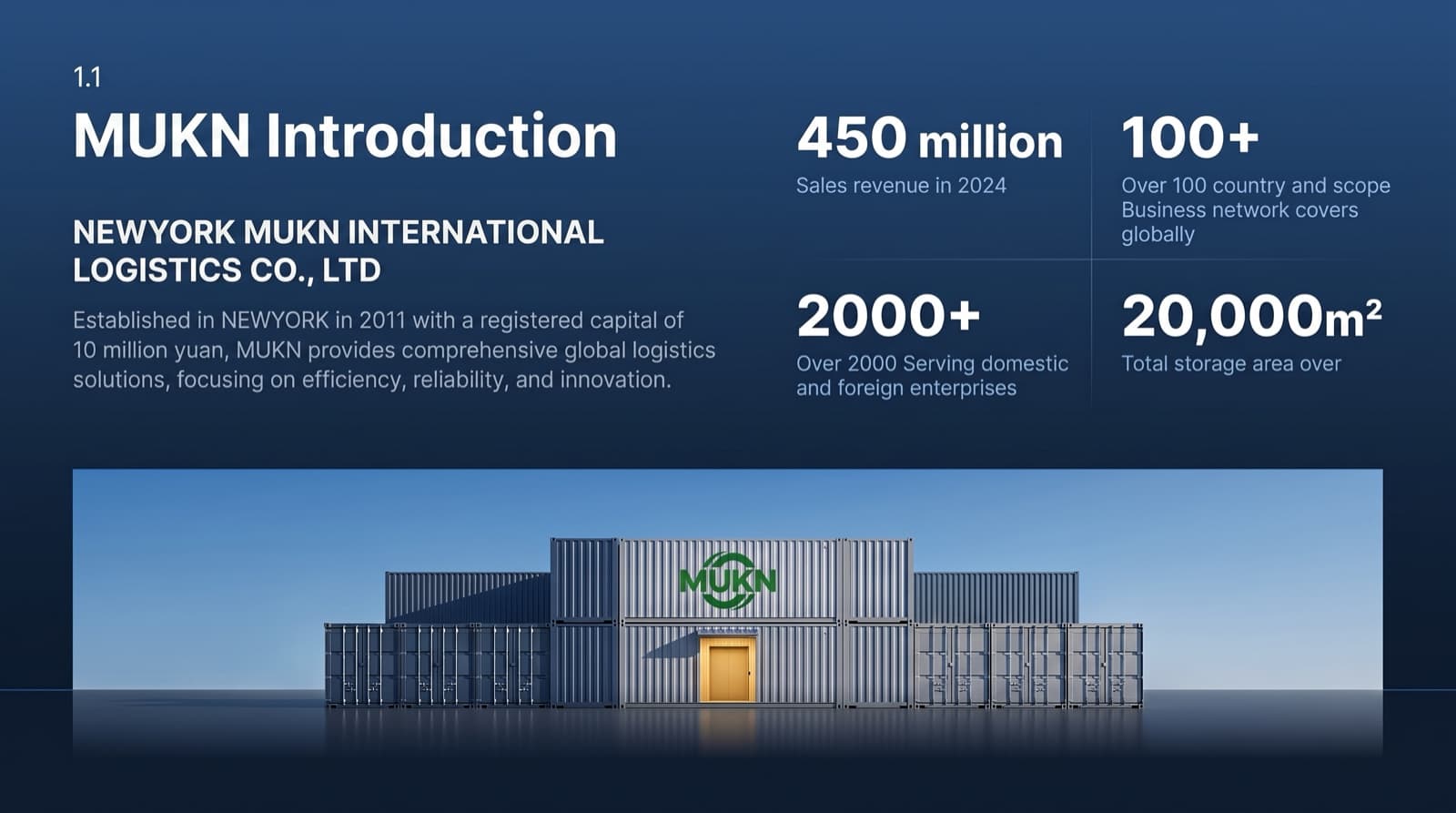
After: the photo anchors the slide, figures on top - 05
Accent color everywhere
When every heading, icon and border is in the brand color, the color stops meaning anything. A simple rule keeps slides calm: about 80% background, about 10% text and structure, and about 10% for a single strong accent that appears only on the focal point — the key number, the one line that matters. If you can't say why something is in the accent color, make it neutral.
- 06
Every slide comes from the same template
Template-based tools are fast because they pour every slide into the same small set of layouts. That consistency is useful, but it's also why decks from the same tool look interchangeable. A data slide, a team slide and a roadmap need different structures; let each slide's layout follow what it has to say, and keep the deck consistent through type, color and spacing instead of identical boxes. In our same-deck test of four AI tools, the template-based ones were faster and cheaper, while per-slide design produced the most distinctive result.
See the four-tool same-deck test →
Questions
Why do AI-generated slides look generic?
Because most tools optimise for a safe, evenly balanced layout: equal weight for every point, rounded cards with icons, little difference between headline and body text, and the same few templates on every slide. It looks tidy but has no focal point.
How can I tell if my slides have the “AI look”?
Check five things: Is there one element that clearly wins? Is the headline several times larger than the body? Is there a real photo used large, rather than icons? Are you using boxes only where they do work? Does the accent color appear only on the focal point? If most answers are no, the slide will read as generic.
Can AI make slides that don't look AI-generated?
Yes, if it designs each slide around its own content instead of filling a template — one focal point, strong size contrast, real imagery. BetterPPT works this way on decks you've already written; it's slower than template-based tools, and you should still review every slide before presenting.
Does avoiding the AI look mean adding more decoration?
Usually the opposite. Most fixes remove things — boxes, icons, extra colors, extra text sizes — so the one thing that matters can stand out.
Bottom line
Start with the first fix: pick one focal point per slide. If you'd rather not redo a whole deck by hand, BetterPPT applies these rules to every slide of the deck you already wrote and returns an editable PowerPoint. You choose how much of your text may change — keep every word, allow light editing, or allow restructuring for dense slides — and you can preview up to six redesigned slides with a refundable deposit before deciding.