To fix a slide with too much text without cutting your content, don't shrink the font — sort the text first. Split it into three zones: a headline that states the point, the numbers that deserve to be big, and the body that supports them. Then give each zone its own size and place on the slide, and move whatever still doesn't fit onto a second slide. Nothing has to be deleted; most of the words simply stop competing with each other. Below is the method we use, a real before-and-after, and how to decide how much of your wording may change.
- 01
Find out why the slide is crowded
A crowded slide is usually carrying more than one message: a claim, its proof, some background and a list of details, all at the same size. Read it once and write down, in one sentence, what the slide is for. Anything that doesn't serve that sentence is a candidate for a second slide or for smaller, quieter text.
- 02
Split the text into three zones: headline, numbers, body
Pull the page apart before laying it out. The headline zone holds one short sentence — we aim for 6–12 words and treat 14 as the ceiling. The number zone holds figures that carry the argument (a percentage, a count). The body holds everything else, set smaller and with space around it. A paragraph pasted as one block is what makes a slide look like a document.
- 03
Make the strongest numbers big and take them out of the sentences
Numbers buried in bullets are the first thing readers miss. Set the two or three that matter in large type with a short label underneath. The sentences that used to hold them get shorter on their own.
How BetterPPT redesigns an existing deck →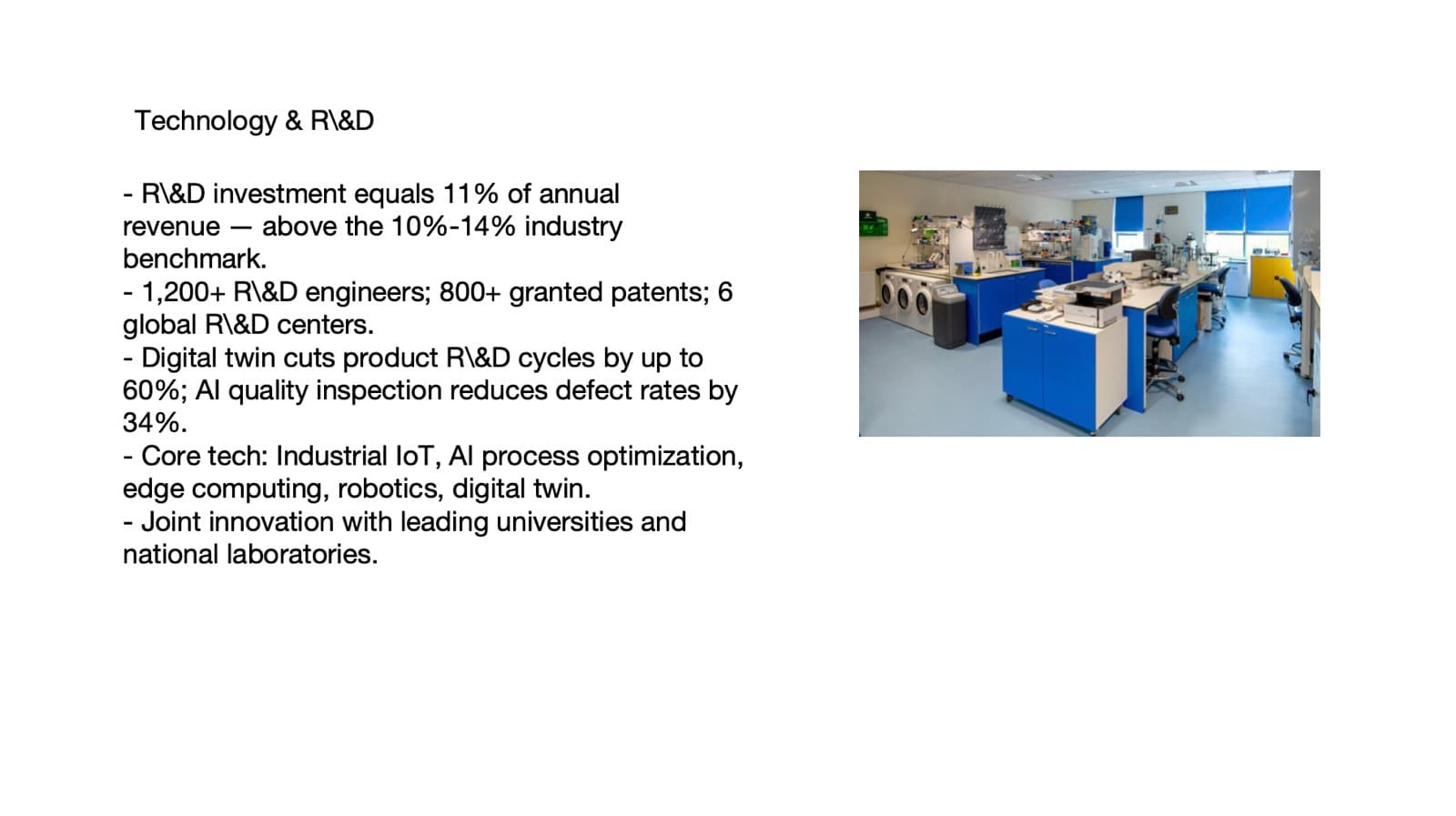
Before: five bullets, every figure buried in a sentence 
After (restructuring mode): a conclusion headline, 11% / 1,200+ / 800+ as big numbers, the rest as short paragraphs - 04
Turn a topic title into a headline that states the point
In the example above, "Technology & R&D" became a small label, and the headline now says "R&D investment above benchmark fuels full innovation pipeline." That headline is new wording we wrote, which is the point of the next tip: it is a change to text, not only to layout.
- 05
Know what you changed — and decide how much you allow
Compare the example with its original. The headline is new, and two details were trimmed: "up to 60%" became "by 60%", and the "10%-14% industry benchmark" range is gone. Every other figure and sentence is kept. That is what restructuring does, and it is why the amount of editing should be your decision. BetterPPT asks you to choose: keep every word, allow light editing (shorter, less repetition, same meaning), or allow restructuring (reorganize and merge when a slide holds too much). If a qualifier like "up to" matters to you, choose keep every word and use the layout fixes only.
- 06
Split what still won't fit onto a second slide
If a slide only works at 12-point type, it is two slides. Group the details by theme, give each group its own headline, and let each page keep one focal point. A longer deck with calm pages beats a short deck nobody can read from the back of the room.
8 fixes for a deck you already wrote →
Questions
How much text is too much on a slide?
There is no universal word count, but a good test is whether the slide has one thing to look at first. If the headline, the numbers and the body all compete at the same size, the slide has too much. We aim for a headline of 6–12 words and treat 14 as the ceiling, with the rest set smaller.
How do I reduce text on slides without losing information?
Sort the text instead of deleting it: a headline that states the point, big numbers for the figures that matter, a smaller body for the support, and a second slide for the rest. Information that moves to a better place is not lost.
Can an AI tool fix my text-heavy slides without rewriting my words?
It depends on the tool and its settings. BetterPPT has three modes: keep every word, allow light editing, or allow restructuring. With keep every word it only changes layout, so very text-heavy pages are rearranged rather than shortened. Restructuring gives the cleanest result on crowded pages but can change wording, as the example above shows.
What does BetterPPT cost for a text-heavy deck?
$39 for up to 30 slides and $59 for 31–50, one-time with no subscription. A refundable $2.90 deposit shows you up to six redesigned slides first. It costs more than subscription tools and has no in-browser editor; you edit the returned .pptx in PowerPoint.
Bottom line
If the deck is already written and too dense, start with the three-zone split on your worst slide. If the whole deck needs it, BetterPPT redesigns every slide individually and returns an editable .pptx — you choose how much of your wording may change, from $39.